

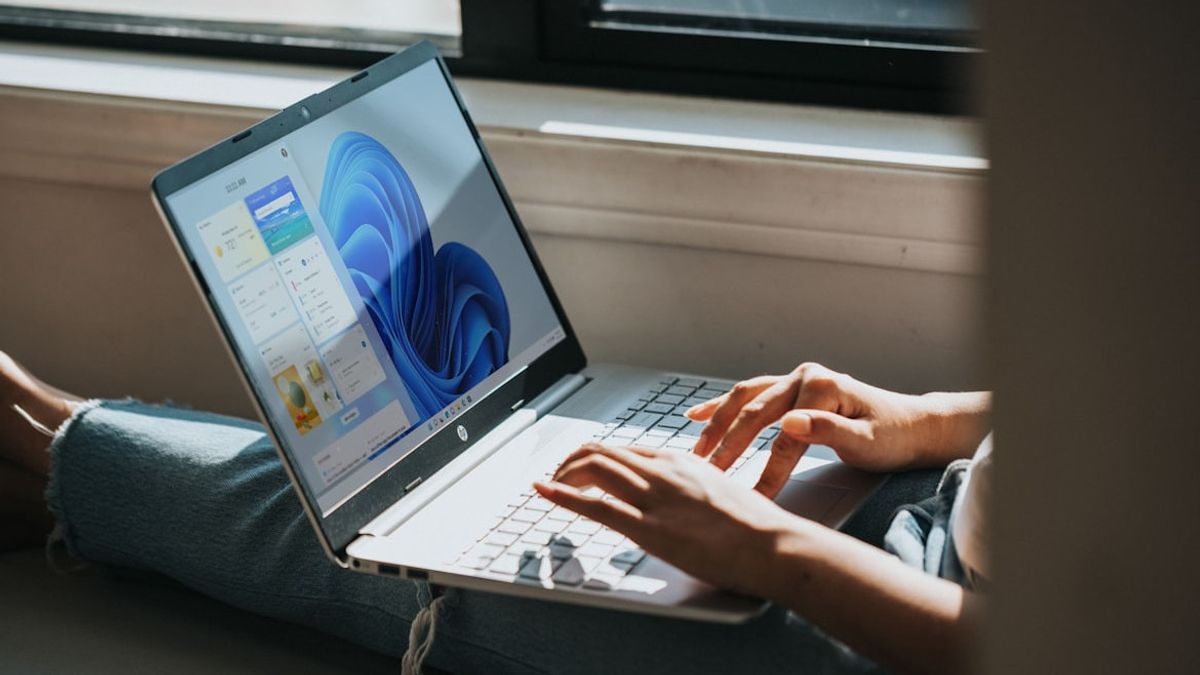


JAKARTA Applications are important components that computers need. Without an application, you will not be able to do important tasks or do other productive activities.
The app consists of light and heavy ones. When running a lightweight application, battery power will not usually be affected. However, it is different from heavy applications such as games or designs. Of course, the computer battery will drain a lot.
This happens because the application requires a lot of memory and processor power. If you have a lot of heavy apps, you may not know which apps are draining the most. To find out, you can do the following method.
SEE ALSO:
-
 | TEKNOLOGI
Bermitra dengan Google, Chipset Qualcomm Akan Dukung Pembaruan Android Hingga 8 Tahun
25 Februari 2025, 11:35 -
 | TEKNOLOGI
Anthropic Luncurkan Claude 3.7 Sonnet, Bisa Kasih Jawaban Cepat dan Lambat
25 Februari 2025, 12:05 -
 | TEKNOLOGI
Perbedaan Bioteknologi Konvensional dan Modern dalam Kehidupan Manusia
25 Februari 2025, 14:10
How To See Battery Use
The easiest way to see the app that consumes the most batteries in Windows 11 is to open its usage history. In this feature, you will see a list of installed apps that use device batteries.
First, you just need to open Settings by pressing the Windows +i shortcut. In the left sidebar, you can click the System menu, then select Daya and Battery in the right panel. After that, tap the Battery Use menu at the top.
Later, the display of the graph will open and you can tap the drop-down menu by selecting the Last 24 Hours or 7 Days Time. The device will display the duration of the battery user per application with the percentage on the right side.
The app will be sorted from the most to the lowest battery usage if you tap the All-Use option. By looking at this list of apps, you can save battery power by reducing the use of applications that drain the battery.
The English, Chinese, Japanese, Arabic, and French versions are automatically generated by the AI. So there may still be inaccuracies in translating, please always see Indonesian as our main language. (system supported by DigitalSiber.id)
Most Popular Tags
#Prabowo Subianto #donald trump #Febrie Adriansyah #8791 #giias 2026Popular


