

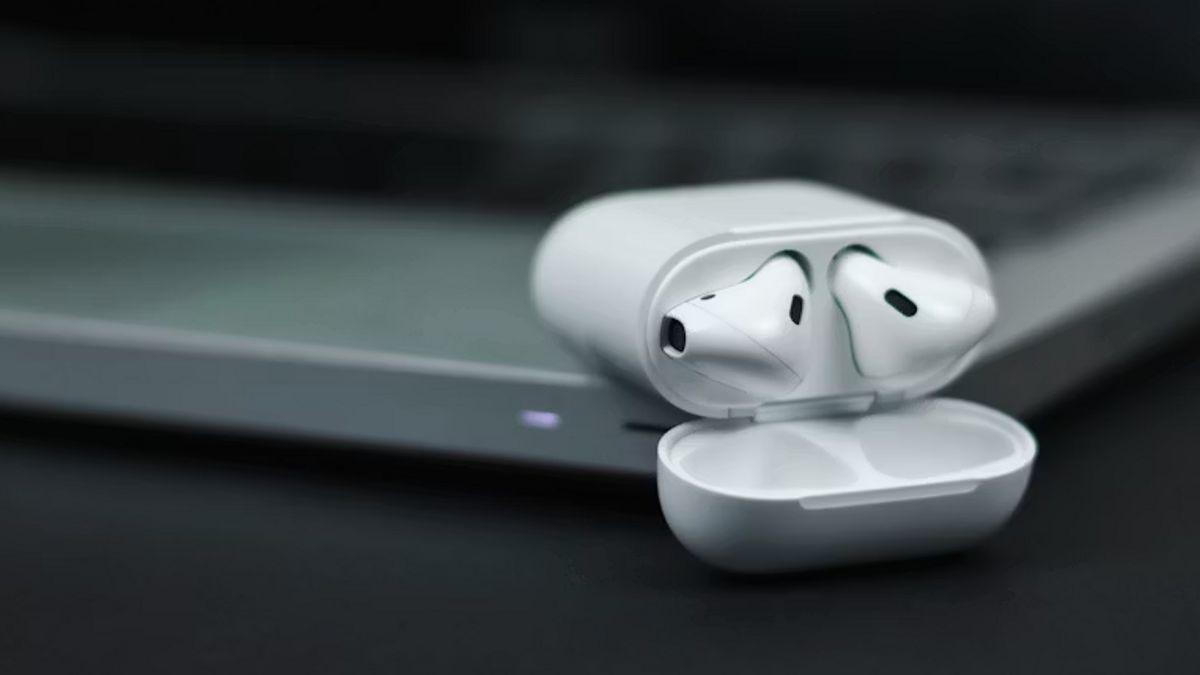


JAKARTA - AirPods are not only designed for Apple ecosystems such as iPhone, iPad, or Mac. This audio device can also be connected to non-Apple devices, even like a Windows 10-based computer.
The process of connecting these two devices is also very easy to do. To connect the Apple-made earbuds to your Windows device, there are some simple steps to take. Here are the steps when pairing for the first time.
Open the Settings menu on the PC, then select the Devices category. On the Bluetooth and other devices tab, click the Add Bluetooth or other device option. Select the Bluetooth type in the window that appears to start scanning for new devices. Put the AirPods in the case, open the cover, then press the button on the back until the light flashes white. Click the AirPods name that appears in the computer search list to complete the installation process.After the pairing process above is successful, you no longer need to go through the steps above to reconnect the device later. The reason is that the system will save the device profile so that the next connection process is much more practical.
To reconnect, you just need to log in to the Bluetooth settings page on your Windows PC. Next, find the name of the AirPods in the list of audio devices, then click the Connect button to start listening to music.
Make sure the AirPods are within a stable Bluetooth range so that the audio quality is not interrupted. With the above steps, the audio transition between Apple and Windows devices can feel smoother and more efficient.
If you experience a difference in audio sound when connecting a device to your Windows PC and to another Apple device, this can happen. The reason is that the device you are using is not specifically designed for the Apple ecosystem and your computer may have differences in audio codecs.
The English, Chinese, Japanese, Arabic, and French versions are automatically generated by the AI. So there may still be inaccuracies in translating, please always see Indonesian as our main language. (system supported by DigitalSiber.id)
Most Popular Tags
#Prabowo Subianto #donald trump #firearm #8791 #giias 2026Popular


