

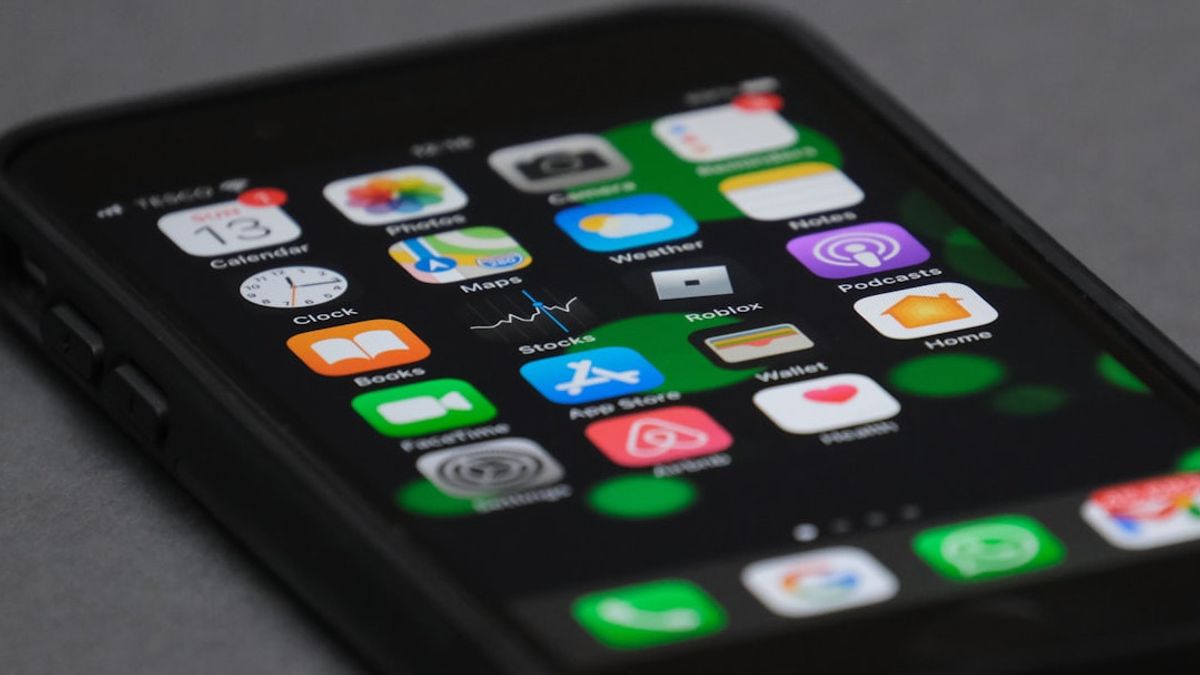


JAKARTA Some people have websites they visit frequently. However, most of them may use browsers more often instead of turning them into shortcuts.
In fact, adding a favorite website to the home screen as a shortcut is a very practical thing to do. By using this method, you no longer need to open another app because the website can be accessed in one tap.
The process of adding a website to the home screen can be done on various types of mobile phones, both iOS and Android. Here's how to add it, launching from How to Geek.
How To Add Web To IOS Home Screen
On iOS devices, you have to use the built-in browser, Safari, to add a website shortcut. Third-party browsers like Google Chrome don't support this feature on iPhone or iPad.
The first step is to open Safari and find a website that you want to add as a shortcut. After that, tap the Share button whose icon is shaped like an arrow up in the box.
Next, scroll down on the sharing sheet that appears and tap the Add to the Main Screen option. If this option is not immediately visible, you can add it through the Edit Action menu at the bottom of the sheet.
You can edit shortcut names as you wish to be displayed on the home screen. Finally, tap Add and your website shortcut will appear on the main screen. This shortcut can be moved or entered into the folder.
SEE ALSO:
-
 | TEKNOLOGI
Mayoritas Pengguna Mac Kini Tidak Percaya dengan Keamanan Bawaan Apple
29 September 2025, 14:35 -
 | TEKNOLOGI
Cloudflare Berkolaborasi dengan Giga UNICEF, Percepat Konektivitas Sekolah di Dunia
29 September 2025, 14:05 -
 | TEKNOLOGI
Bos Telegram Tolak Permintaan Intelijen Prancis untuk Hapus Saluran Politik Moldova
29 September 2025, 15:05

How To Add Web To Androidanda Screen
Unlike iOS, Android users have the flexibility to add websites to home screens from various browsers. One of the browsers that can be used is Google Chrome.
First, open Google Chrome and visit the website you want to shortcut. Then, tap the three-dot icon located at the top right of the screen. When the drop-down menu appears, select the Add to the Main Screen option.
After editing the shortcut name, you can tap Add and the pop-up window will appear from the home screen launcher. You can manually drag the icon or add it automatically.
The English, Chinese, Japanese, Arabic, and French versions are automatically generated by the AI. So there may still be inaccuracies in translating, please always see Indonesian as our main language. (system supported by DigitalSiber.id)
Most Popular Tags
#Prabowo Subianto #donald trump #firearm #8791 #giias 2026Popular


