
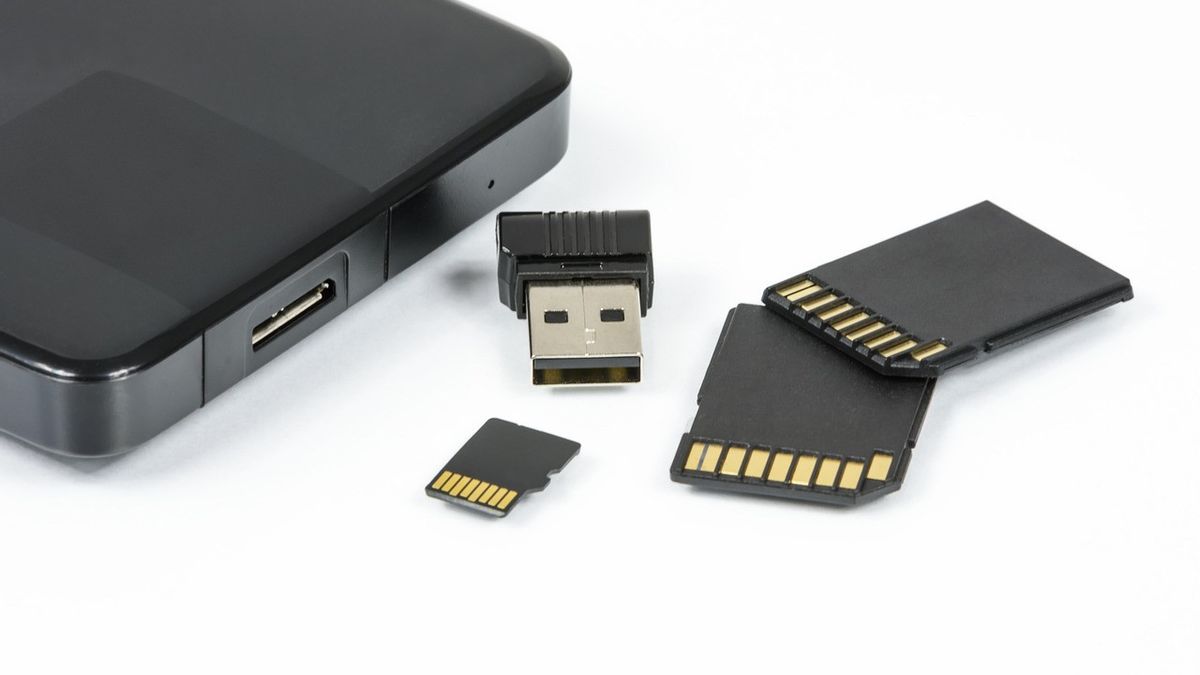


YOGYAKARTA - Is your external memory broken? Don't rush to replace it, because how to fix a broken SD card is quite easy to practice.
As we know, SD cards are portable flash memory cards that can increase the storage capacity of electronic devices such as smartpjone, cameras, or laptops. However, it is not uncommon for users to experience problems such as SD cards that cannot be read, files are lost or error notifications appear. This condition certainly makes you panic, especially if the data in it is very important.
Before deciding to buy a new memory card, it's a good idea to try some repair steps first. SD card damage is not always permanent. In many cases, the problem is caused by misuse, or a problematic file system.
So, how do you fix a broken sd card? Let's find out the answer in the review below.
Variety of Ways to Fix a Corrupted SD CardSummarized from various sources, here are some ways to fix a damaged SD card that you can practice:
Reinstall Card Reader DriverBasically, Windows will download and install the latest drivers automatically through system updates. However, sometimes the update itself can cause problems.
If you suspect that the SD card damage is caused by an incompatible or problematic driver, the solution you can do is delete the card reader driver and then reinstall it manually.
Fix SD Card with CHKDSK CommandWindows has a built-in feature in the form of a command line utility that checks and repairs errors in the file system, both logically and physically. This feature is known as CHKDSK, and its use is relatively easy.
To fix SD card that is having problems using CHKDSK, do the following steps:
Type cmd in the Windows search column, then select Run as administrator. Enter the command chkdsk X: / f (replace the letter X with your SD card drive), then press Enter. The / f parameter works so that the system automatically repairs the errors found. Wait for the process to finish. The duration of the work can be quite long, depending on the capacity of the SD card. Try another USB port or replace the adapterOne way to fix a damaged SD card on a laptop is to try a different USB port. In addition, you can also check using the CHKDSK command, use SD card data recovery software, to reinstall the card reader driver.
Repair internal SD card that is damagedThis step is considered the easiest to practice and should be done first before trying other methods. If your laptop has an SD card reader, it is recommended to use an additional USB card reader and try it on several USB ports. If possible, test it on more than one computer to make sure the source of the problem.
Use a Different AdapterThe possibility of damage does not always come from the microSD card, but from the adapter used. To make sure of this, try replacing another adapter or connecting the microSD card directly to the computer using a microSD-specific card reader.
Use SD Card Data Recovery SoftwareDamage or corruption on SD cards often causes important files to be lost. To overcome this, you can use a data recovery application such as Disk Drill.
Disk Drill is a recovery software that supports various types of SD cards, ranging from SD, SDHC, to SDXC. This program is able to recover various types of files such as photos, videos, audio, and documents, and provides a preview feature before the recovery process is carried out.
Try Using SD Card on Other DevicesIt is not impossible that the SD card is actually normal, while the problem comes from the computer being used. Therefore, try installing the SD card on another laptop or computer to make sure the source of the damage.
If you don't have a backup device, you can borrow a friend's computer or use a public computer, for example at the library. For microSD cards, smartphones with a microSD slot can also be used as a test tool. However, pay attention to the format notification so as not to delete data accidentally.
That's the information about how to fix a broken SD card. Get updates on other featured news only at VOI.id.
The English, Chinese, Japanese, Arabic, and French versions are automatically generated by the AI. So there may still be inaccuracies in translating, please always see Indonesian as our main language. (system supported by DigitalSiber.id)
Most Popular Tags
#Prabowo Subianto #donald trump #Febrie Adriansyah #8791 #giias 2026Popular


