

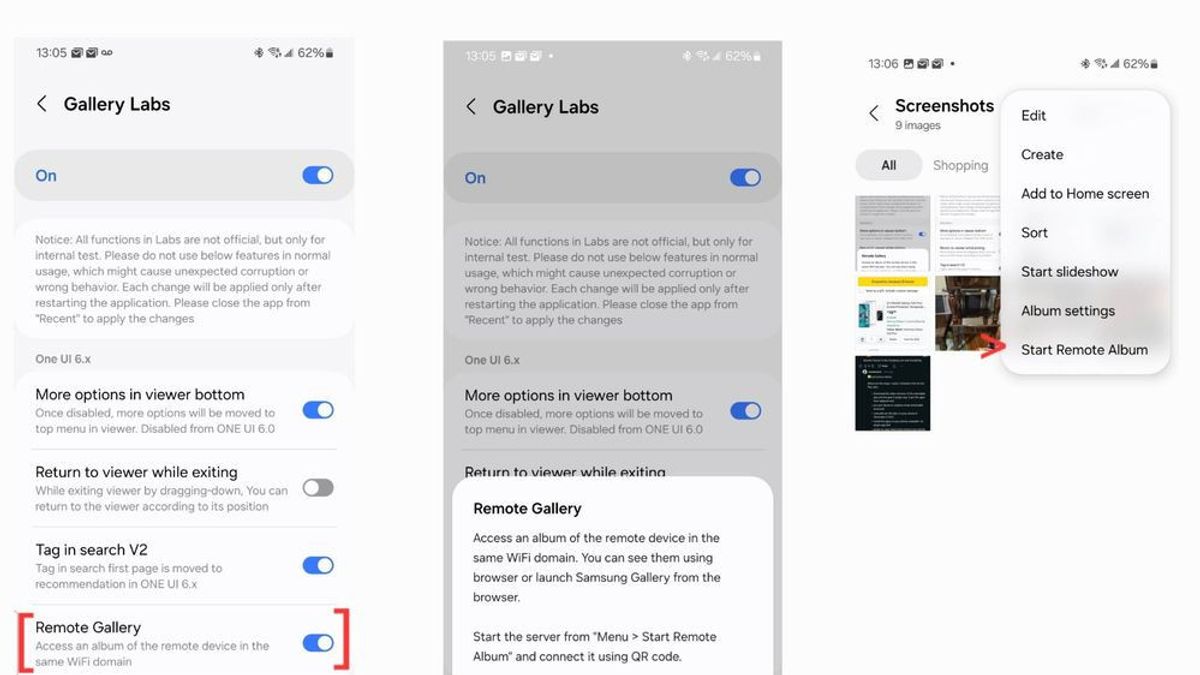


JAKARTA Samsung has an interesting feature in its gallery application. This feature makes it easier for users to save images as PDF files directly without requiring additional applications.
This feature, called Save as PDF, is part of the Gallery Lab. Samsung presents this feature for Galaxy users to make the conversion process more efficient.
To use this feature, users only need to select the image they want to make PDF. Users can select one or more images. After that, tap the Create button and select the Save menu as a PDF.
Users can also set the image sequence to be entered into PDF documents. Once the sequence is complete, the system will process the image into PDF within a few seconds.
The finished PDF document will immediately open in the Samsung Notes application. Next, users can perform basic edits or edits on the file.
SEE ALSO:
-
 | TEKNOLOGI
xAI Gugat Apple dan OpenAI ke Pengadilan Texas karena Monopoli Persaingan AI
26 Agustus 2025, 08:31 -
 | TEKNOLOGI
Realme Rilis Teaser “Chill Fan Phone” Baru dengan Pendingin AC Bawaan
26 Agustus 2025, 09:05 -
 | TEKNOLOGI
ITSEC Security Summit 2025: Tekankan Pentingnya Kolaborasi Ketahan Siber
26 Agustus 2025, 15:05 -
 | TEKNOLOGI
Masih Harmonisasi, BSSN Targetkan RUU KKS Bisa Disahkan Tahun Ini
26 Agustus 2025, 17:06
There is also an option to change the scroll direction of the page from horizontal to vertical. Users only need to click the three-dot menu, then select the Display option of the page for adjustment.
If the final result is appropriate, the user can save the file permanently. File storage can be done by tapping the three-dot menu, then selecting Save it as a file. After that, specify the storage folder.
This feature is very useful for those who often deal with digital documents. This is a practical solution to manage images and turn them into PDF formats quickly.
The English, Chinese, Japanese, Arabic, and French versions are automatically generated by the AI. So there may still be inaccuracies in translating, please always see Indonesian as our main language. (system supported by DigitalSiber.id)


