
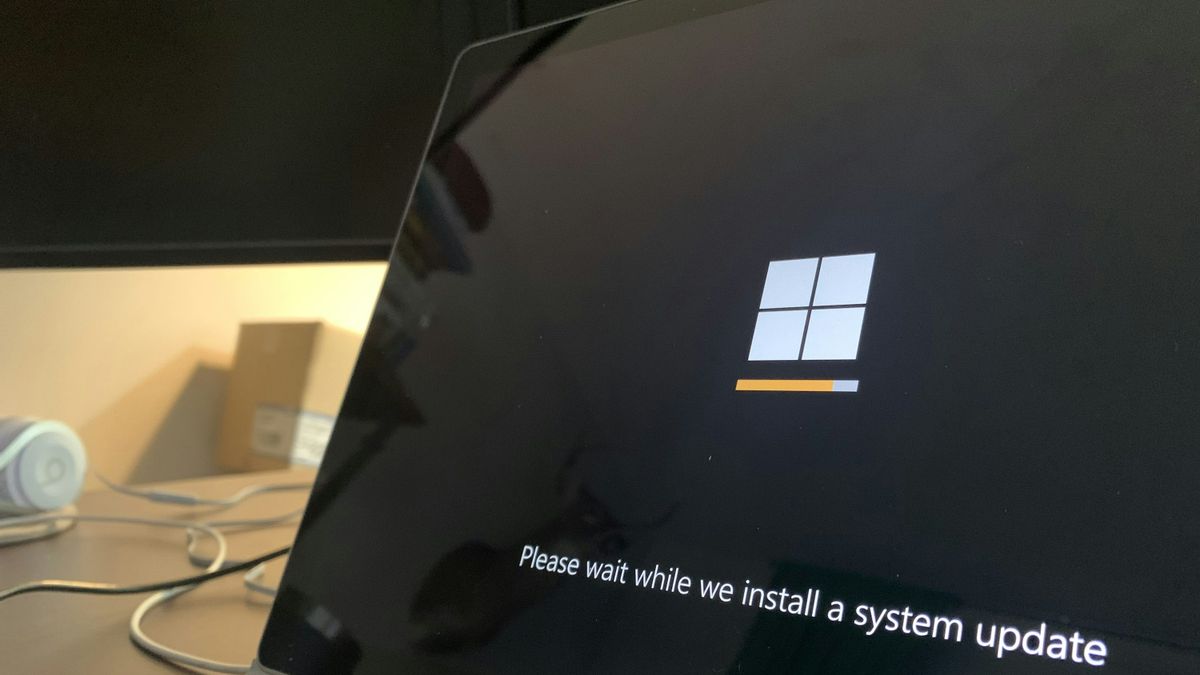


YOGYAKARTA Laptop users with the Windows operating system must feel disturbed when updating. The reason is that when the Windows update the laptop becomes slow, the display changes, and the worse one is to restart suddenly.
To avoid such interference, users prefer to turn off Windows updates. For those of you who want to do so, see how to turn off Windows updates below.
A fairly annoying Windows update will usually be felt in Windows users version 10 and 11. In both versions, aggressive updates have quite an impact on user convenience. Therefore, many PC users or Windows 10 and 11 laptops prefer to turn off the update.
On Windows 10 and Windows 11, updates can be made in two modes, namely automatic or permanent. Here's how to turn off Windows updates in general.
This mode allows updates to temporarily stop. However, later the update will be made again. The way that can be done is as follows.
Press the Windows + I button then go to Settings. After that select Windows Update, click Pause updates for 1 week.
Press Windows + R and type 'services.msc' then press the Enter button. After that, look for the 'Windows Update' menu, click "Properties", "Properties". After that you have to change Startup type to Disabled then click Stop, and press OK.
This method will make Windows updates stop really. Even so, users can activate it again manually. The way that can be done is as follows.
Turn off Windows Update permanently in Windows 10 and Windows 11 a little different way, depending on the version used. If you use the Pro or Enterprise version of Windows, the way that can be done is through the Group Policy Editor.
Open the Group Policy Editor window by pressing the Windows + R button then type gpedit.msc. If the window opens, enter the Computer Configuration. Find the Administrativebutes, then proceed to Windows Components. Find again Windows Update.
SEE ALSO:
-
 | TEKNOLOGI
Begini Cara Menonaktifkan Peringatan Batas Volume Headphone di iPhone dan iPad
13 Agustus 2025, 22:35 -
 | TEKNOLOGI
Gim Horor Bertahan Hidup Haunted Bloodlines akan Dirilis pada Q4 2025
13 Agustus 2025, 21:05



Later in it there is a Configure Automatic Updates setting. You have to change the settings to a 'Disabled' then 'Save'.
The method will be different if you use Windows Home. You have to use Registry Editor by going into the 'Run' window. Type regedit then press Enter. Once Registry Editor opens, you have to go to HKEY_LOCAL_MACHINE, then to SOFTWARE, then to Policies. Continue to Microsoft and select Windows.
If the WindowsUpdate folder doesn't exist yet, you can create a new folder with that name. After that create another folder with the name AU. In the AU folder you must create a new DWORD (32-bit)' value with the name NoAutoUpdate. You must set the value to 1 to stop checking and install automatic updates.
The English, Chinese, Japanese, Arabic, and French versions are automatically generated by the AI. So there may still be inaccuracies in translating, please always see Indonesian as our main language. (system supported by DigitalSiber.id)
Most Popular Tags
#Prabowo Subianto #donald trump #2026 World Cup #Febrie Adriansyah #8791Popular


