

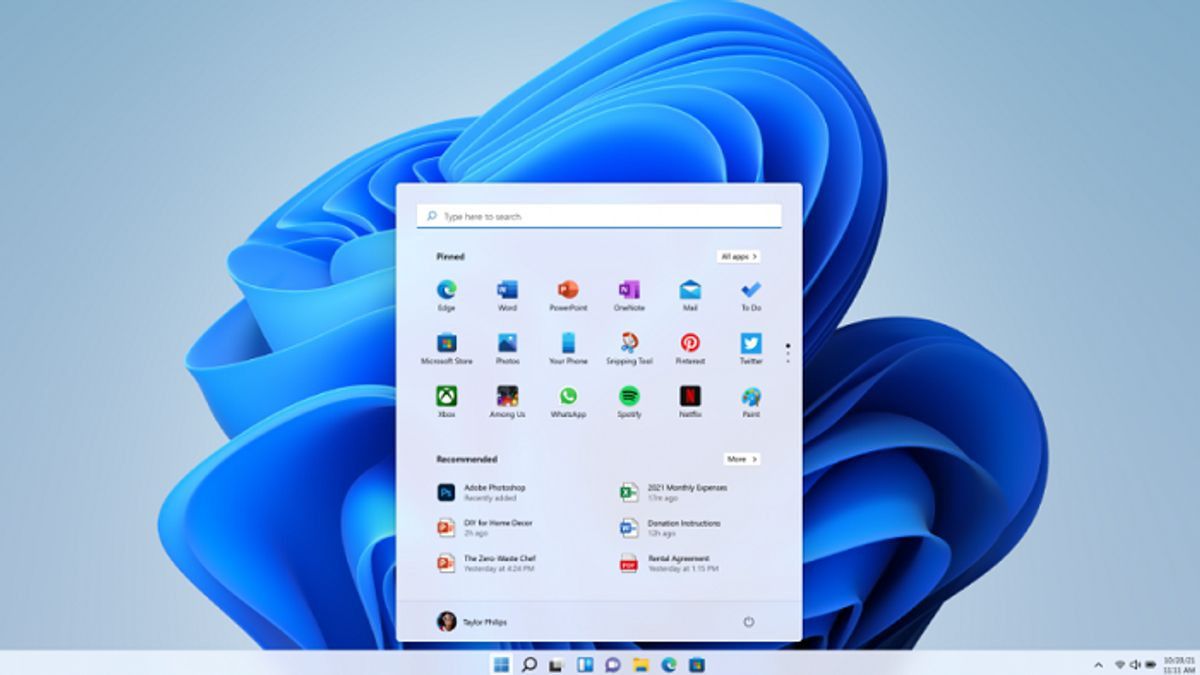


JAKARTA Location tracking is not only needed on laptops, but also on laptops with Windows 11 support. If you're worried about privacy concerns, you might want to disable the feature.
Usually, location tracking is needed when you want to run a specific application or system. However, location tracking is not needed every day. If you rarely open an app that requires this feature, you can disable it.
By turning off the location tracking feature, you can save the battery power ejected. Deactivating the location on a Windows 11-based laptop or PC is not difficult to do. You just need to do the following stages, citing from Makeuseof's report.
SEE ALSO:
-
 | TEKNOLOGI
Ikuti Jejak Spotify, YouTube Music Akan Hadirkan Fitur Berbagi Lirik
23 April 2025, 11:35 -
 | TEKNOLOGI
Para Ilmuwan Perdebatkan Bukti Kehadiran 'Alien' di Exoplanet K2-18b
23 April 2025, 07:35 -
 | TEKNOLOGI
BSSN Dorong Sinergi Lintas Sektor untuk Mewujudkan Ketahanan Siber Nasional
23 April 2025, 08:33

Deactivating Location Tracking in Windows 11
It should be noted that the site tracking feature that is turned off will affect the performance of a number of applications. Some apps will stop working, while the rest will not work optimally.
Apps that are turning out to be less than optimal are apps that take data from location tracking. If you don't mind the change, you can follow the following steps.
To reactivate the location tracking service, you just need to repeat the above stage. When in the Location Service section, press activate it so that some of the options in it come back to function.
The English, Chinese, Japanese, Arabic, and French versions are automatically generated by the AI. So there may still be inaccuracies in translating, please always see Indonesian as our main language. (system supported by DigitalSiber.id)
Most Popular Tags
#Prabowo Subianto #donald trump #2026 World Cup #venezuela #konflik timur tengahPopular


